Deal Pipeline
Every deal — from the moment a lead is qualified until you invoice for the completed job — lives in the Opportunities module. The pipeline view is a Kanban board where each stage is a column.
The stages
Rasveon uses a five-stage pipeline built for field service work:
| Stage | What "in this stage" means |
|---|---|
| New Lead | Qualified but you haven't been on-site yet |
| Site Survey | Survey booked or completed, gathering technical requirements |
| Quote Sent | Formal quotation sent to the customer, awaiting response |
| Job Scheduled | Deal won, installation date confirmed |
| Completed | Job done, invoice raised |
There are two terminal states:
- Won — same as Completed, counted in revenue
- Lost — deal fell through; requires a reason (price, timing, competitor, no-response, other)
The Kanban board
Open Opportunities in the sidebar. You'll see five columns, one per stage. Each card shows:
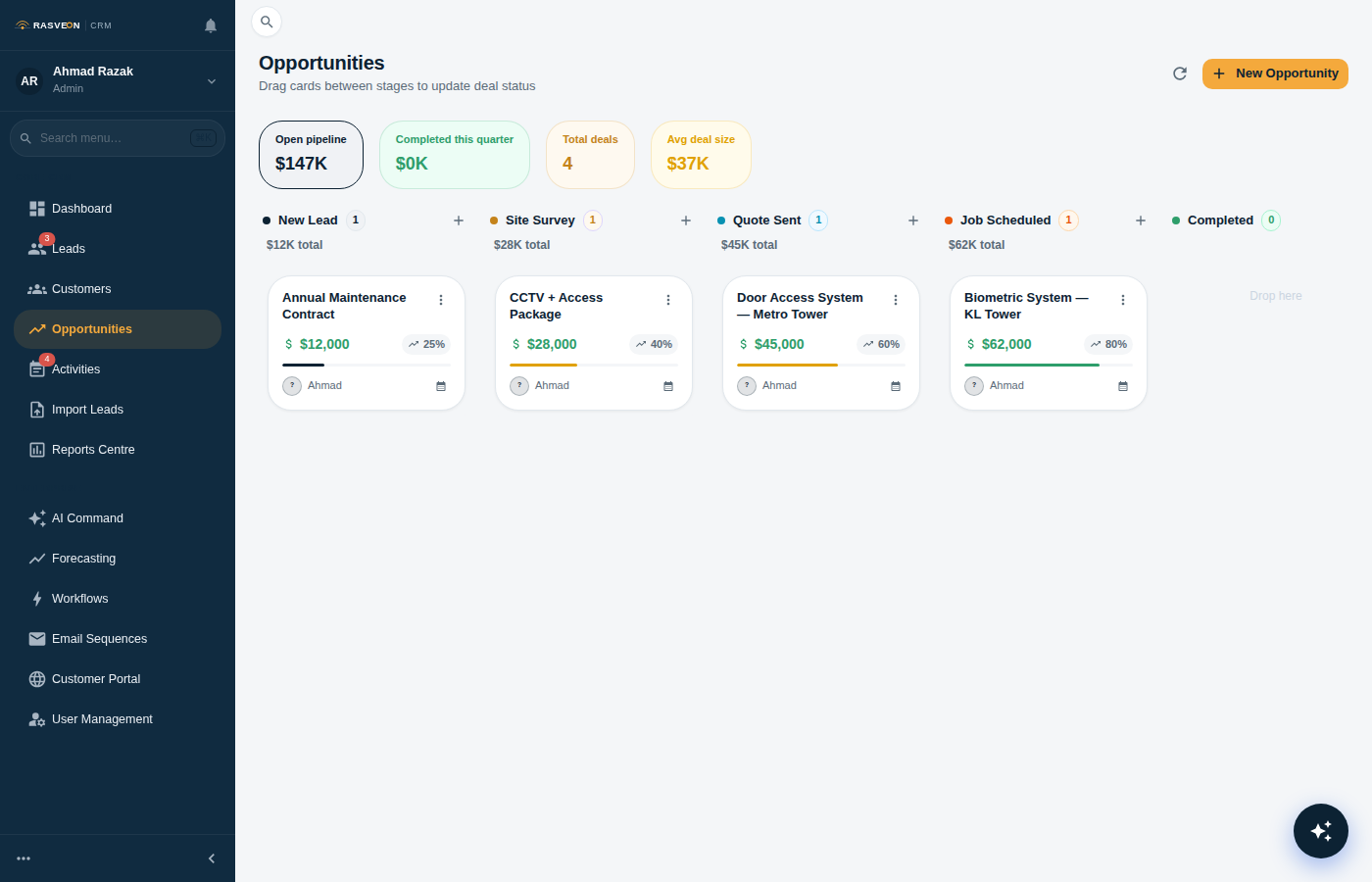
- Deal name
- Customer
- Value in your workspace currency (RM, S$, or US$)
- Assigned salesperson
- Age in the current stage (colored red if stale)
Moving deals between stages
Drag any card to a new column. The deal updates immediately for everyone in the workspace. You can also ask the AI:
"Move the Menara access control deal to Quote Sent."
The card colour code
Cards go amber after 7 days in a stage and red after 14. That's your prompt to either push it forward, chase the customer, or move it to Lost.
Creating an opportunity
From the pipeline view, click + New Opportunity at the top-right. Fill in:
- Deal name — a short label, e.g. "Menara HQ — 12-door access control"
- Customer — pick from existing customers (or create one on the fly)
- Contact — the primary contact for this deal
- Value — in your workspace currency
- Expected close date — used for forecasting
- Stage — default is New Lead
- Assigned to — the salesperson responsible
You can also create an opportunity automatically by converting a lead.
Deal detail page
Click a card to open the deal. You'll see:
- Header — name, value, stage, expected close
- Left rail — all fields, inline-editable
- Centre — Activities timeline, notes, quote attachments, site photos
- Right rail — Tasks, related contacts, revision history
Forecasting
The Reports → Forecast page shows a weighted pipeline projection based on stage probabilities:
| Stage | Default win probability |
|---|---|
| New Lead | 10% |
| Site Survey | 30% |
| Quote Sent | 50% |
| Job Scheduled | 90% |
| Completed | 100% |
Admins can adjust these probabilities in Settings → Pipeline.
Losing a deal
If a deal falls through, drag the card off the board or open it and click Mark Lost. You'll be asked for a reason. Lost deals stay searchable in Opportunities → All → Filter: Lost, and lost reasons appear in the Reports → Win/Loss view.
Pipeline permissions
- user — sees only deals they own
- senior — sees the whole pipeline, can edit anyone's
- manager, admin — full access, including reassignment and stage probability config
Managers can toggle View → Team pipeline to switch between their own and the team's view.
Tips from the field
- Add site photos immediately. Attach photos to the deal from the mobile app while you're on-site. You'll thank yourself when the technician arrives.
- Ask the AI for a stall report. "Which deals have been in Quote Sent for more than 10 days?" — great for weekly reviews.
- Never skip Site Survey. Even for tiny jobs, log it. It gives you data on how long surveys typically take and where they cluster.