跳到主要内容

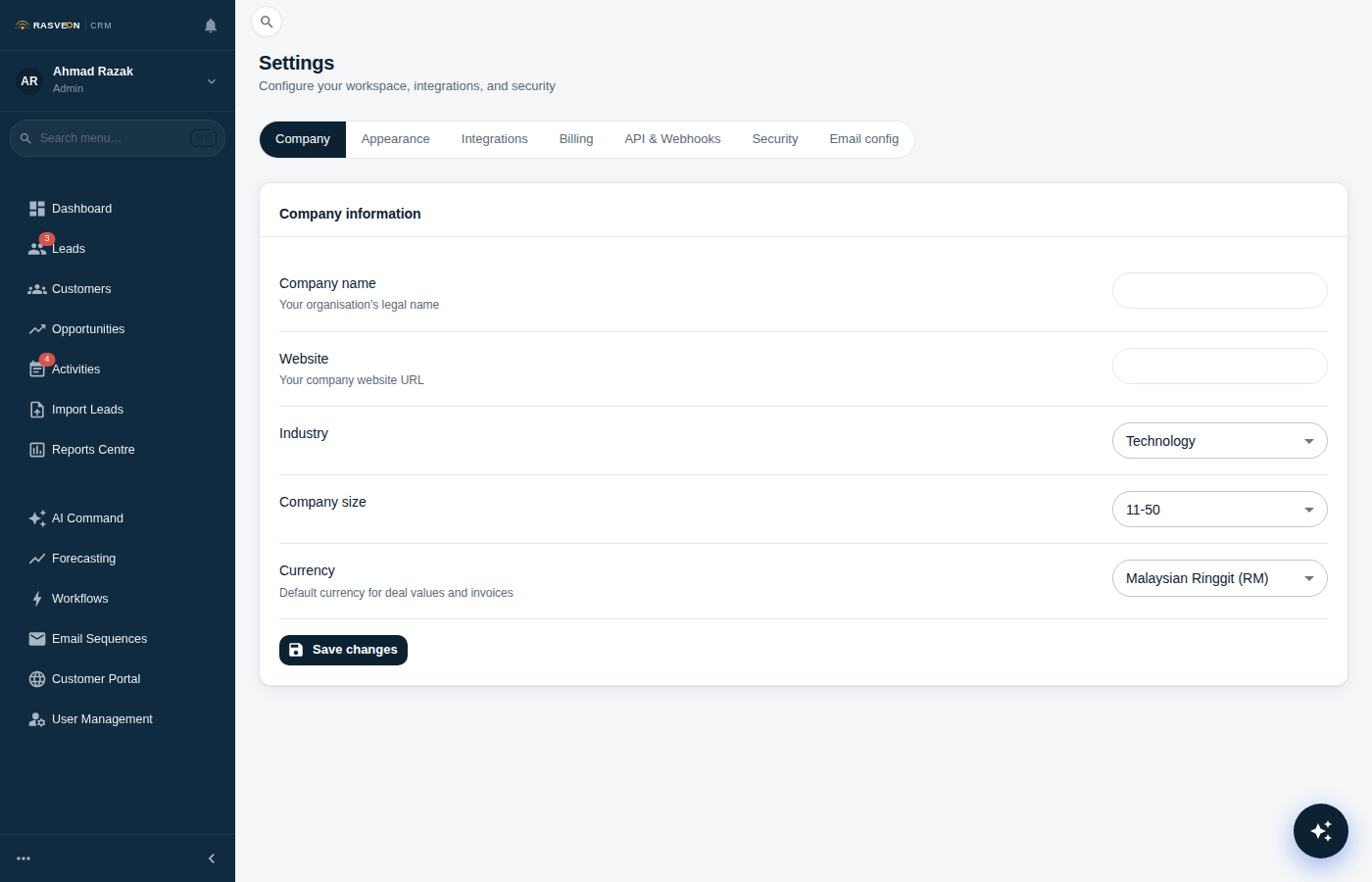
Workspace Settings

This page is for admins and the account owner. Everything here is under Settings in the sidebar.

Workspace settings
The Settings hub — users, billing, pipeline, integrations, and everything else in one place.

Users & Roles

Settings → Users

  • Invite a user — enter email, choose role (up to your own rank), send. They get an email with a signup link. The invite expires in 7 days.
  • Change a role — admin only. Click the dropdown next to any user.
  • Deactivate a user — they can't sign in but their history is preserved. Their records stay assigned to them until you reassign.
  • Force sign-out — signs the user out of every device. Useful if a phone is lost.
  • Delete a user — admin only, requires typing the user's name to confirm. Their records must be reassigned first.

See Roles & Permissions for what each role can do.

Billing

Settings → Billing (owner only)

  • Current plan — what you're on, next billing date, current usage against limits
  • Change plan — upgrade or downgrade (see Pricing)
  • Payment method — add or update the credit card
  • Invoices — download every invoice as PDF
  • Cancel subscription — takes effect at the end of the current billing period

Pipeline & Sources

Settings → Pipeline (manager+)

  • Rename stages
  • Adjust default win probabilities
  • Reorder stages (drag and drop)
  • Add or remove lead sources
  • Add or remove lost reasons

Changes apply immediately across the workspace.

Notifications defaults

Settings → Notifications (admin)

Set workspace-wide defaults for what triggers push and email notifications. Individual users can override these under their own Settings → Notifications.

Appearance

Settings → Appearance (per-user)

  • Light / Dark / Auto mode
  • Language — English, Bahasa Melayu, or 中文
  • Date format — auto, or override to a specific format
  • Timezone — auto-detected from your browser; override if needed

Language and timezone affect what the AI says back to you, too.

AI Assistant

Settings → AI (per-user)

  • Voice output — off / browser / neural
  • Speech language — English, Bahasa Melayu, or Chinese
  • Memory review — Professional plan and above. See what the AI has learned about you and delete anything you want it to forget.

Integrations

Settings → Integrations (admin)

  • Email — configure the SMTP or Gmail account activities and quotes are sent from
  • Stripe — connected automatically if you're a paying customer
  • API keys — generate keys for the Business plan and above

Data export

Settings → Data → Export (admin)

Download a ZIP containing CSV files for every table in your workspace — leads, customers, contacts, opportunities, activities, notes, tasks. This is your data. You can request an export any time.

Large exports take a few minutes and are delivered by email when ready.

Data import

Settings → Data → Import (admin)

Upload a CSV to bulk-create leads, customers, or contacts. Rasveon walks you through mapping columns and previewing the first ten rows before committing.

Duplicate detection runs during import — matching records show as "Update existing" or "Skip" for you to choose.

Deleting the workspace

Settings → Workspace → Danger Zone (owner only)

Deleting the workspace schedules deletion 30 days from now. During those 30 days:

  • The workspace is still fully accessible
  • The owner can cancel deletion any time
  • Nothing is actually removed

After 30 days, the workspace and all its data are permanently deleted, including backups. This cannot be undone.

To delete immediately, cancel your subscription and contact support@rasveoncrm.com — we'll delete on request, but the standard 30-day soft delete is what protects you from accidents and disgruntled ex-employees.

Ownership transfer before deletion

If you're leaving the company but the workspace should continue, transfer ownership first. Deleting the workspace deletes everyone's data, not just yours.

Audit log

Settings → Audit Log (admin)

Every important action is logged:

  • User invited, role changed, signed out, deleted
  • Plan changed
  • Records deleted
  • Workspace settings changed
  • API keys created or revoked

The log goes back the full history of the workspace. You can filter by user, action type, or date range.

Read next: Roles & Permissions to understand who can see and do what.