Create your first lead in five minutes
By the end of this page you'll have:
- Added a lead
- Logged a call
- Converted the lead to a customer
- Scheduled a follow-up task
There are two ways to do this — clicking through the UI, or asking the AI. We'll show both.
Method 1 — Click through the UI
Step 1: Open the Leads page
From the sidebar, click Leads. You'll see the leads table with a + New Lead button at the top-right.
Step 2: Add the lead
Click + New Lead and fill in what you know:
- Name — required
- Email — highly recommended, needed for follow-up emails
- Phone — highly recommended, needed for the Call button
- Company — the business they represent
- Source — how they found you (referral, website, event…)
- Status — leave this as New
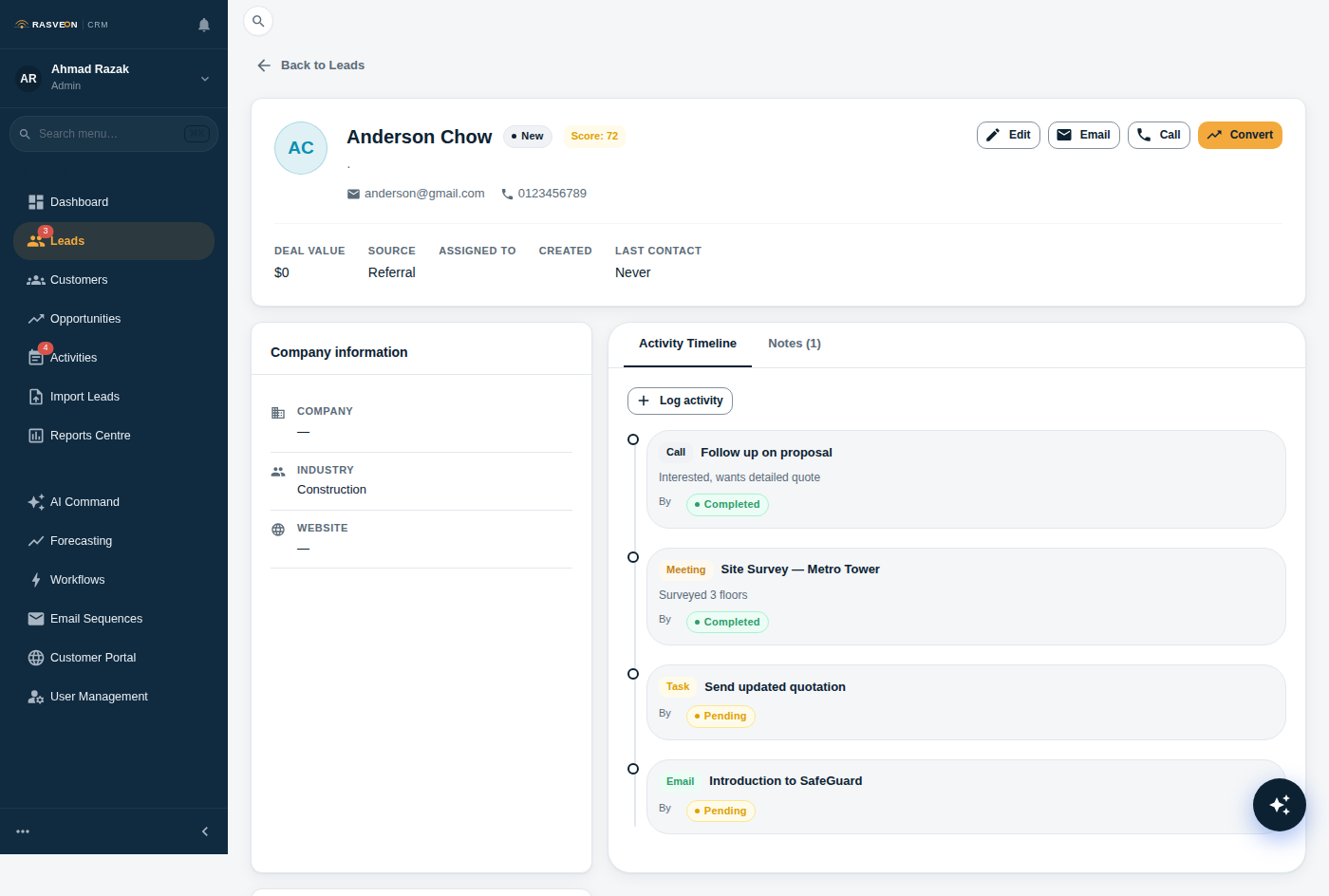
Click Save. You'll land on the lead's detail page.

Every field on the lead is editable inline — click any value to change it. But email and phone are the two you'll wish you had later. Ask before you hang up.
Step 3: Log a call
On the lead detail page, click the Call button. This dials the number using your phone's default handler.
When you're done, click + Log Activity on the right rail. Choose type Call, add a short outcome note like "Interested in 12-door access control for new HQ. Wants a site survey next week."
Step 4: Convert to customer
If the lead is qualified — they've confirmed budget, need, and timeline — click the Convert button at the top.
Rasveon creates:
- A new Customer record (the company)
- A new Contact record (the person)
- A new Opportunity — the deal you're about to sell
Step 5: Schedule a follow-up
From the customer or opportunity page, click + Task. Set:
- Title — "Confirm site survey slot"
- Due date — tomorrow
- Assigned to — you
Save. That task now shows up in your Dashboard and in the sidebar badge count.
Method 2 — Ask the AI
Open the AI (floating amber button, or Ctrl + Space). Say — or type:
"Create a lead — Ahmad Zaki from Puteri Locksmiths, ahmad@puteri.my, +60 12 345 6789, referred by Menara Sales."
The AI creates the lead and gives you back a confirmation with a link to open it. Then:
"Log a call — spoke to Ahmad, wants a site survey for 12-door access control at their new HQ."
Then:
"Convert Ahmad to a customer and create a task to confirm the site survey slot tomorrow."
Done. Every one of those actions used the same permissions and validation as clicking through the UI — the AI is not a shortcut around your rules.
What happens next
Every lead has a status — New, Contacted, Qualified, Converted, Unqualified. The lifecycle looks like this:
New ──▶ Contacted ──▶ Qualified ──▶ Converted
(becomes a Customer)
└──▶ Unqualified
If a lead goes cold, move them to Unqualified with a note explaining why. Don't delete — you might revisit them later.
Read next: Leads → for the full reference on every field, filter, and bulk action.