Cipta prospek pertama anda dalam lima minit
Menjelang akhir halaman ini anda akan mempunyai:
- Menambah prospek
- Log panggilan
- Menukar prospek kepada pelanggan
- Menjadualkan tugas susulan
Ada dua cara untuk melakukan ini — klik melalui UI, atau tanya AI. Kami akan tunjukkan kedua-duanya.
Kaedah 1 — Klik melalui UI
Langkah 1: Buka halaman Prospek
Dari bar sisi, klik Prospek. Anda akan melihat jadual prospek dengan butang + Prospek Baharu di kanan atas.
Langkah 2: Tambah prospek
Klik + Prospek Baharu dan isikan apa yang anda tahu:
- Nama — diperlukan
- E-mel — sangat disyorkan, diperlukan untuk e-mel susulan
- Telefon — sangat disyorkan, diperlukan untuk butang Panggilan
- Syarikat — perniagaan yang mereka wakili
- Sumber — bagaimana mereka menemui anda (rujukan, laman web, acara…)
- Status — biarkan sebagai Baharu
Klik Simpan. Anda akan mendarat di halaman butiran prospek.
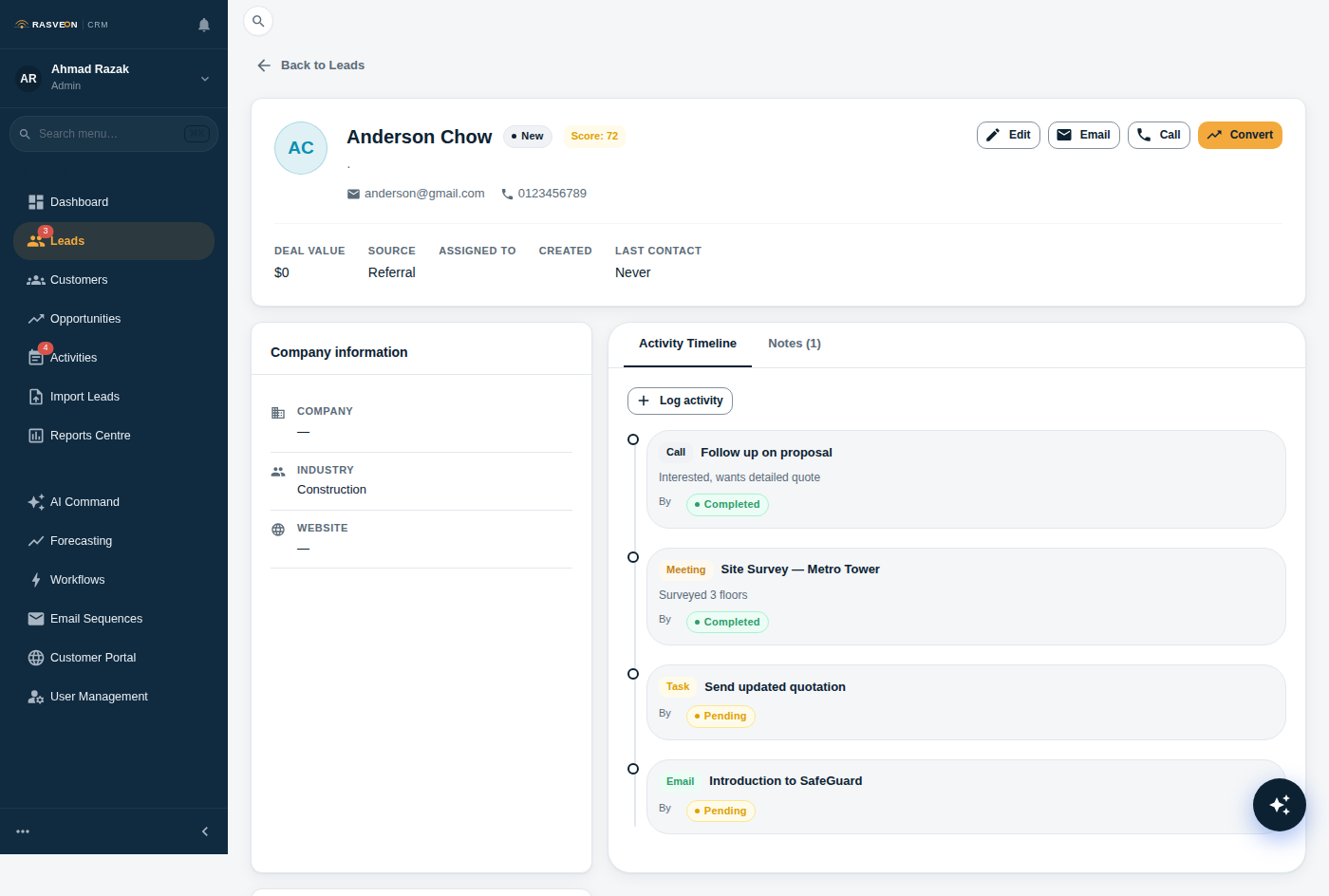
Setiap medan pada prospek boleh disunting inline — klik mana-mana nilai untuk menukarnya. Tetapi e-mel dan telefon adalah dua yang anda akan berharap ada nanti. Tanya sebelum anda meletakkan telefon.
Langkah 3: Log panggilan
Pada halaman butiran prospek, klik butang Panggil. Ini mendail nombor menggunakan pengendali lalai telefon anda.
Apabila anda selesai, klik + Log Aktiviti pada rel kanan. Pilih jenis Panggilan, tambah nota hasil pendek seperti "Berminat dengan kawalan akses 12-pintu untuk HQ baharu. Mahu tinjauan tapak minggu depan."
Langkah 4: Tukar kepada pelanggan
Jika prospek layak — mereka telah mengesahkan bajet, keperluan, dan garis masa — klik butang Tukar di bahagian atas.
Rasveon mencipta:
- Rekod Pelanggan baharu (syarikat)
- Rekod Kenalan baharu (orang)
- Peluang baharu — deal yang anda akan jual
Langkah 5: Jadualkan susulan
Dari halaman pelanggan atau peluang, klik + Tugas. Tetapkan:
- Tajuk — "Sahkan slot tinjauan tapak"
- Tarikh akhir — esok
- Diberikan kepada — anda
Simpan. Tugas itu kini muncul dalam Papan Pemuka anda dan dalam kiraan lencana bar sisi.
Kaedah 2 — Tanya AI
Buka AI (butang ambar terapung, atau Ctrl + Space). Cakap — atau taip:
"Cipta prospek — Ahmad Zaki dari Puteri Locksmiths, ahmad@puteri.my, +60 12 345 6789, dirujuk oleh Menara Sales."
AI mencipta prospek dan memberi anda kembali pengesahan dengan pautan untuk membukanya. Kemudian:
"Log panggilan — bercakap dengan Ahmad, mahukan tinjauan tapak untuk kawalan akses 12-pintu di HQ baharu mereka."
Kemudian:
"Tukar Ahmad kepada pelanggan dan cipta tugas untuk mengesahkan slot tinjauan tapak esok."
Selesai. Setiap satu tindakan itu menggunakan kebenaran dan pengesahan yang sama seperti mengklik melalui UI — AI bukan jalan pintas mengelilingi peraturan anda.
Apa yang berlaku seterusnya
Setiap prospek mempunyai status — Baharu, Dihubungi, Layak, Ditukar, Tidak Layak. Kitaran hayat kelihatan seperti ini:
Baharu  ──▶  Dihubungi  ──▶  Layak  ──▶  Ditukar
                                          (menjadi Pelanggan)
                    └──▶  Tidak Layak
Jika prospek menjadi sejuk, pindahkan mereka ke Tidak Layak dengan nota menjelaskan sebabnya. Jangan padam — anda mungkin akan meninjau semula mereka kemudian.
Baca seterusnya: Prospek → untuk rujukan penuh pada setiap medan, penapis dan tindakan pukal.