Peranan & Kebenaran
Rasveon mempunyai lima peranan yang mengawal apa yang seseorang boleh lakukan di dalam ruang kerja anda, ditambah satu bendera pemilik akaun yang mengawal keputusan pengebilan dan peringkat ruang kerja.
Lima peranan
Peranan disusun mengikut pangkat. Pangkat yang lebih tinggi termasuk segala-galanya yang pangkat yang lebih rendah boleh lakukan, ditambah lebih banyak lagi.
| Pangkat | Peranan | Apa yang mereka boleh lakukan |
|---|---|---|
| 0 | Viewer | Baca segala-galanya. Tidak boleh mencipta, menyunting, atau memadam apa-apa. |
| 1 | User | Cipta rekod. Sunting rekod yang mereka miliki. Tidak boleh menyunting rekod orang lain. |
| 2 | Senior | Segala-galanya yang User lakukan, ditambah menyunting rekod sesiapa sahaja. |
| 3 | Manager | Segala-galanya yang Senior lakukan, ditambah menugaskan semula rekod, menjemput pengguna, menyunting tetapan pasukan, melihat laporan pasukan. |
| 4 | Admin | Segala-galanya yang Manager lakukan, ditambah menguruskan peranan, memadam rekod, dan mengkonfigurasi tetapan seluruh ruang kerja. |
Bendera Pemilik Akaun
Berasingan daripada hierarki peranan ialah bendera is_owner. Sentiasa ada tepat satu pemilik akaun pada bila-bila masa dalam ruang kerja. Pemilik boleh:
- Menukar pelan (naik taraf / turun taraf / batalkan)
- Menguruskan kaedah pembayaran
- Menjadualkan pemadaman ruang kerja (lihat Tetapan Ruang Kerja)
- Memindahkan pemilikan kepada admin lain
Pemilik mestilah admin. Jika pemilikan dipindahkan, kedua-dua pihak mengekalkan peranan admin mereka — hanya bendera itu bergerak.
Jika pemilik meninggalkan syarikat atau kehilangan akses e-mel, admin lain boleh meminta pemindahan pemilikan daripada sokongan Rasveon. Ini memerlukan pengesahan identiti dan tidak automatik.
Apa yang setiap peranan lihat dalam UI
Viewer
- Semua halaman baca (Prospek, Pelanggan, Peluang, Laporan)
- Tiada butang "Cipta" atau "Sunting" di mana-mana
- AI hanya boleh menjalankan kemahiran baca — carian, carian, laporan
User
- Akses baca yang sama seperti Viewer
- Boleh mencipta rekod baharu
- Pada rekod yang mereka tidak miliki: boleh melihat tetapi medan adalah baca sahaja
- AI akan menolak untuk mengemas kini rekod orang lain dengan mesej yang jelas
Senior
- Hak edit penuh pada mana-mana rekod
- Tidak boleh menugaskan semula rekod antara pengguna (itu tindakan Manager)
- Tidak boleh menjemput pengguna baharu
Manager
- Hak edit dan tugas semula penuh
- Boleh menjemput pengguna baharu sehingga pangkat mereka sendiri (Manager boleh menjemput User dan Senior, bukan Manager lain)
- Boleh melihat laporan peringkat pasukan
- Boleh mengkonfigurasi Sumber, peringkat Saluran Paip, dan Status Prospek
Admin
- Segala-galanya yang Manager boleh lakukan
- Menguruskan peranan pengguna (naik taraf, turun taraf)
- Memadam mana-mana rekod (dengan pengesahan)
- Mengkonfigurasi tetapan seluruh ruang kerja
- Akses Tetapan → Lanjutan
Menukar peranan seseorang
Hanya admin boleh menukar peranan. Pergi ke Tetapan → Pengguna, cari pengguna, klik dropdown peranan.
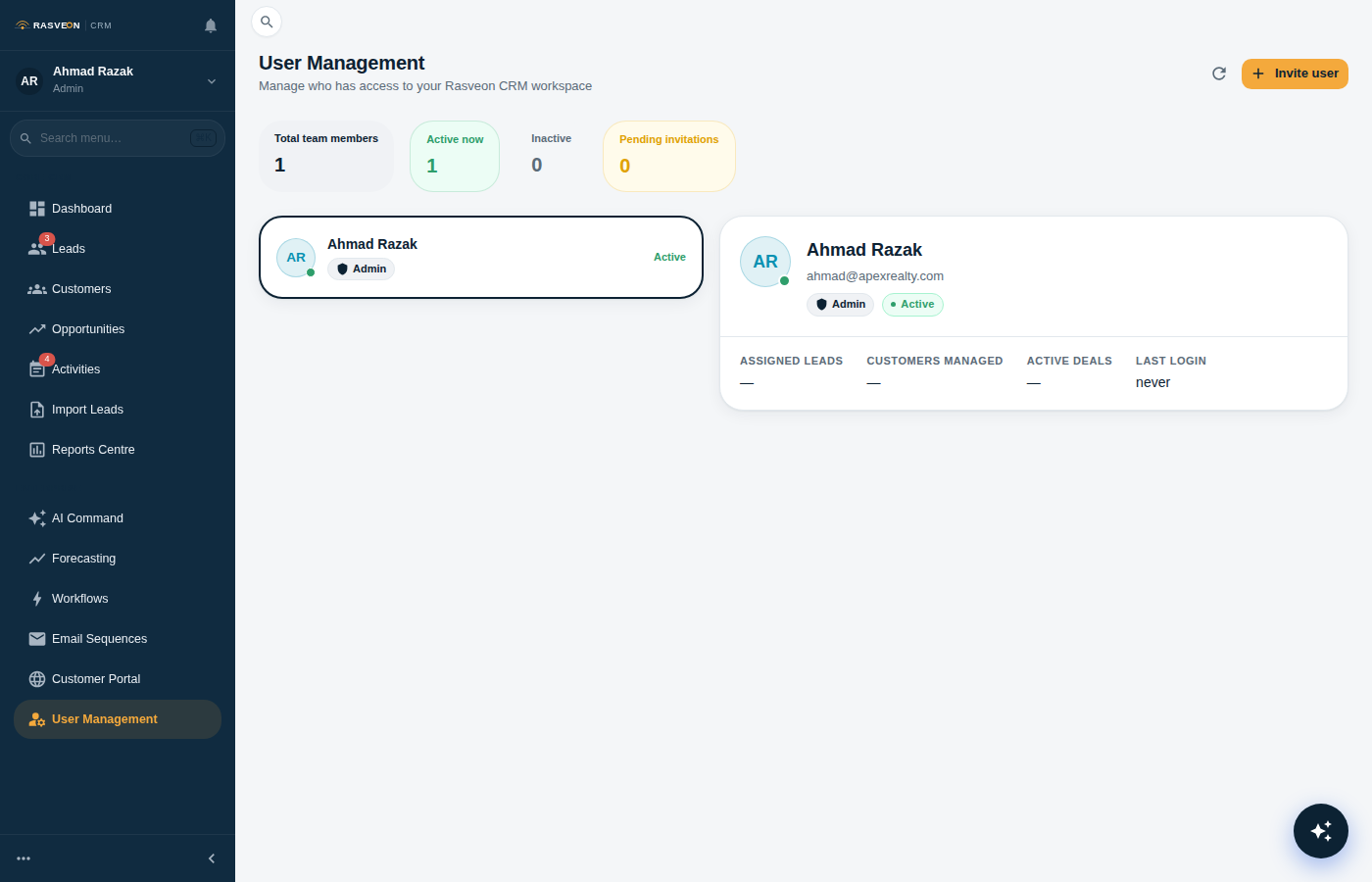
Penurunan tidak menghilangkan sejarah — aktiviti yang mereka log, rekod yang mereka cipta, nota yang mereka tulis semuanya kekal dikaitkan dengan mereka.
Mod percubaan dan baca sahaja
Jika percubaan langganan anda tamat tanpa pelan, ruang kerja masuk ke mod baca sahaja — semua orang menjadi Viewer secara efektif sehingga pemilik akaun melanggan.
Ini bukan perubahan peranan — peranan sebenar pengguna dipelihara. Sebaik sahaja anda melanggan, semuanya berfungsi semula.
Kebenaran dan AI
AI menghormati semua peraturan peranan. Jika User meminta AI menyunting prospek yang mereka tidak miliki, AI akan menjawab sesuatu seperti:
"Saya tidak dapat mengemas kini prospek itu — ia diberikan kepada Sarah. Tanya Sarah, atau senior/manager, untuk membantu."
AI tidak akan pernah menyamar peranan yang lebih tinggi atau memintasi semakan kebenaran.
Amalan terbaik untuk struktur pasukan
Untuk perniagaan perkhidmatan lapangan biasa 10-20 orang, kami cadangkan:
- 1 Admin — pemilik perniagaan atau pengurus operasi, juga pemilik akaun
- 1 Manager — ketua jualan atau ketua pemasangan
- 2-4 Senior — juruteknik dan wakil jualan yang berpengalaman
- Semua lain sebagai User — pekerja baharu, kakitangan junior
- Viewer — akauntan, rakan kongsi luaran yang memerlukan keterlihatan tetapi tidak sepatutnya menyunting
Baca seterusnya: Tetapan Ruang Kerja → untuk apa yang admin boleh konfigurasikan.