Prospek
Prospek ialah bakal pelanggan yang anda belum menjual kepadanya. Sebaik sahaja mereka membeli sesuatu, mereka menjadi Pelanggan — tetapi sehingga itu, mereka tinggal di Prospek.
Jadual Prospek
Klik Prospek dalam bar sisi untuk membuka jadual. Anda akan melihat satu baris setiap prospek dengan lajur ini:
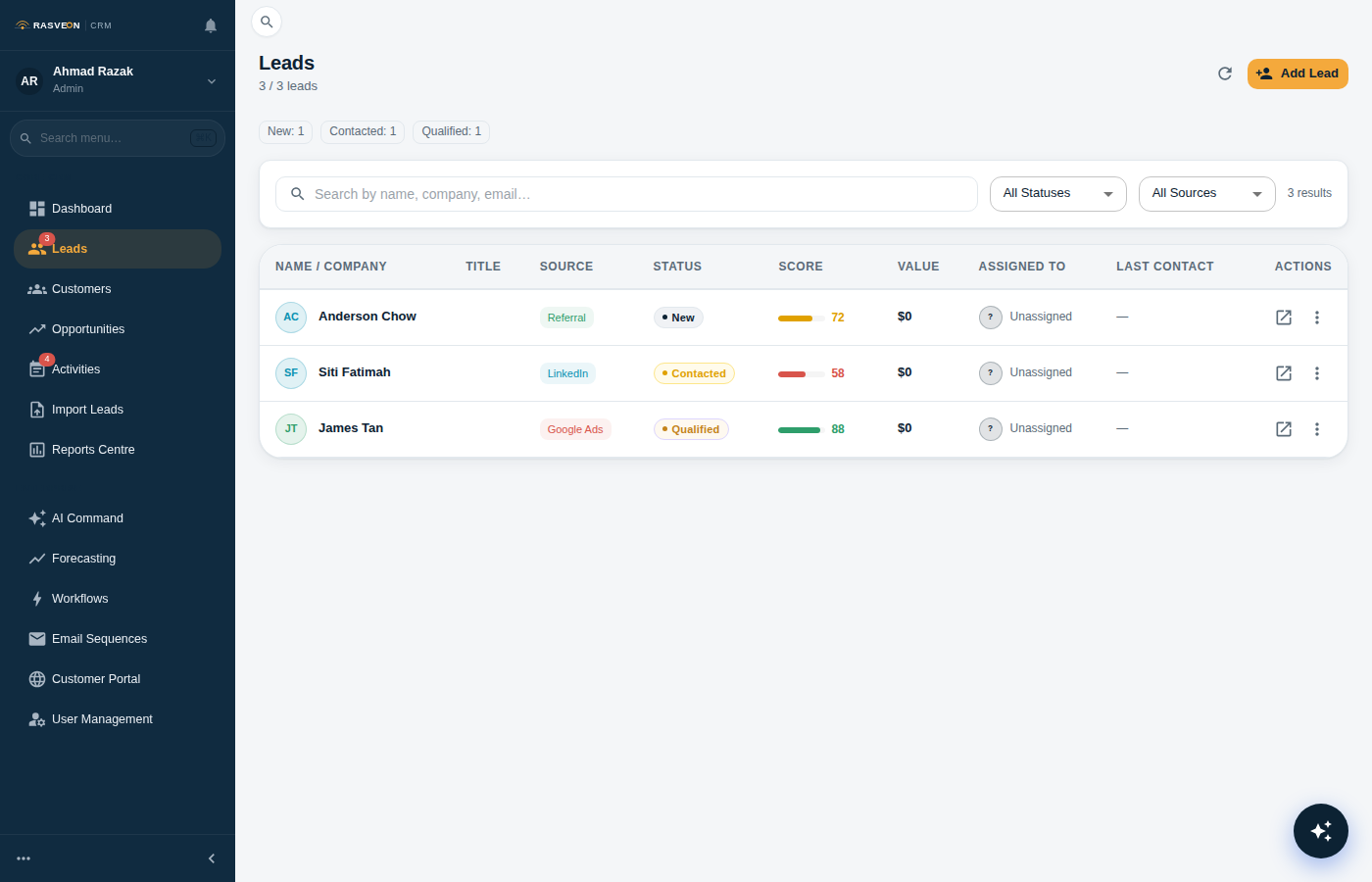
| Lajur | Maksudnya |
|---|---|
| Nama | Nama orang itu |
| Syarikat | Perniagaan yang mereka wakili |
| Status | Baharu, Dihubungi, Layak, Ditukar, Tidak Layak |
| Sumber | Dari mana mereka datang |
| Diberikan kepada | Siapa yang memiliki prospek ini |
| Aktiviti terakhir | Panggilan, e-mel atau nota terkini |
| Dicipta | Bila prospek ditambah |
Menapis & mencari
- Kotak carian mencari nama, e-mel, telefon dan syarikat secara serentak
- Dropdown Status menapis kepada satu status
- Dropdown Diberikan kepada menapis kepada prospek yang dimiliki oleh pengguna tertentu (pengurus ke atas)
- Dropdown Sumber menapis mengikut sumber rujukan
- Berbilang penapis bergabung (DAN)
Tindakan pukal
Pilih berbilang baris menggunakan kotak semak, kemudian gunakan bar alat di bahagian atas:
- Berikan kepada… — tugaskan semula pilihan
- Tukar status — kemas kini pukal
- Padam — kekal, admin sahaja, memerlukan pengesahan
Halaman butiran prospek
Klik mana-mana prospek untuk membuka paparan butiran. Ini adalah skrin yang paling banyak digunakan dalam Rasveon.
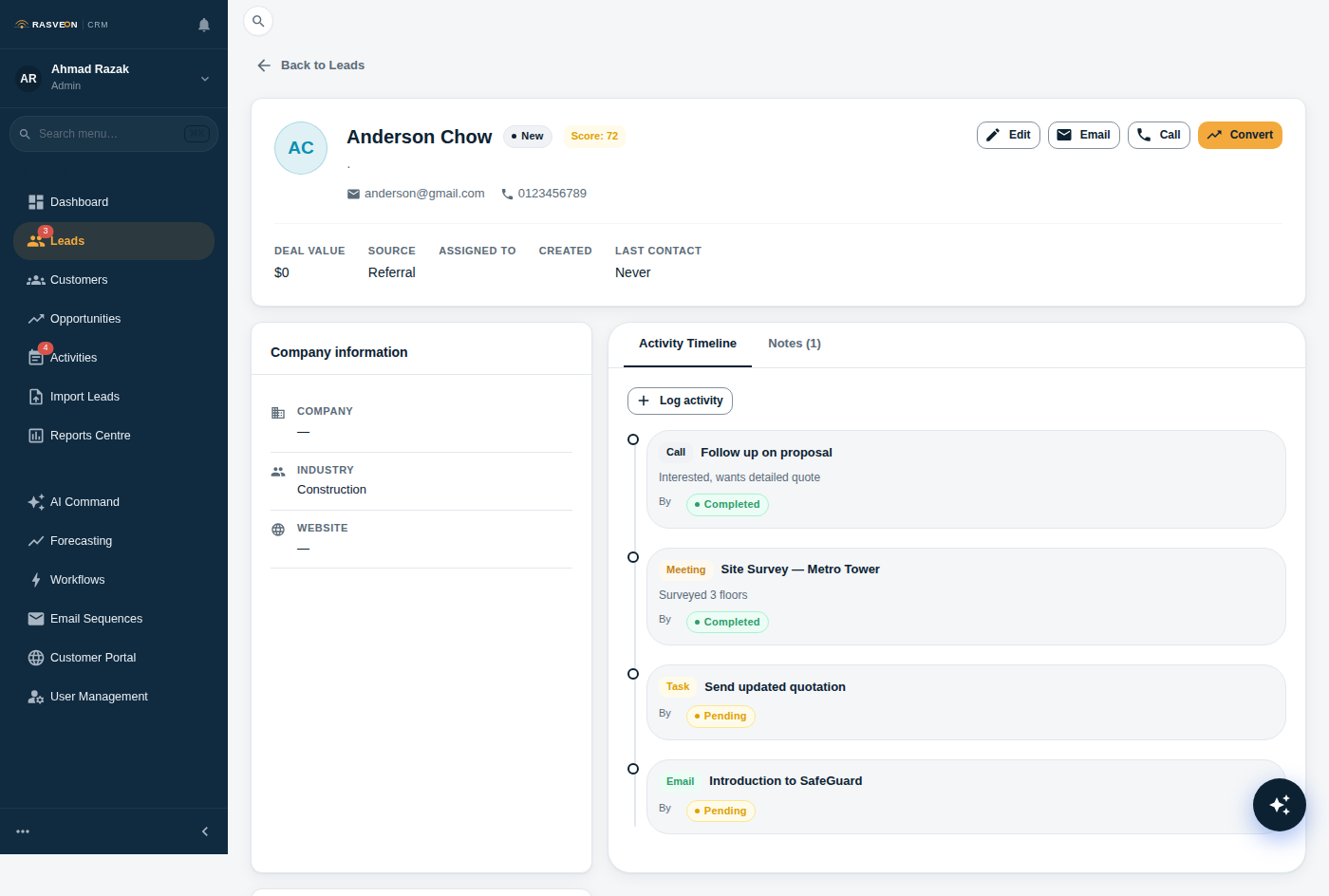
Susun atur:
- Rel kiri — medan prospek (semua boleh disunting inline)
- Tengah — garis masa Aktiviti (panggilan, e-mel, mesyuarat, nota)
- Rel kanan — Tindakan pantas (E-mel, Panggil, Tukar), tugas terbuka, rekod berkaitan
Penyuntingan inline
Klik mana-mana nilai pada rel kiri untuk menyunting. Tekan Enter atau klik di luar untuk menyimpan; Escape untuk membatal. Perubahan disimpan serta-merta — tiada butang "Simpan" berasingan.
Butang E-mel
Membuka klien e-mel lalai anda dengan e-mel prospek diisi terlebih dahulu dan baris subjek yang dicadangkan. Jika anda mempunyai Pembantu AI dibuka, anda juga boleh memintanya "draf e-mel susulan" — AI akan menulis sesuatu yang kontekstual yang boleh anda salin atau hantar.
Butang Panggil
Pada aplikasi web, ini menggunakan tel: — OS anda mengendalikannya. Pada aplikasi mudah alih, ia menggunakan pendail asli.
Butang Tukar
Menjadikan prospek sebagai Pelanggan + Kenalan + Peluang dalam satu tindakan. Lihat panduan Prospek Pertama untuk butiran.
Status prospek
| Status | Maksud |
|---|---|
| Baharu | Baru ditangkap, tiada siapa telah menghubungi mereka lagi |
| Dihubungi | Menghubungi tetapi belum mengesahkan minat |
| Layak | Mengesahkan bajet, keperluan dan garis masa — bersedia untuk dijual kepada |
| Ditukar | Menjadi pelanggan (ditetapkan secara automatik apabila anda klik Tukar) |
| Tidak Layak | Tidak sesuai — industri salah, tiada bajet, masa tidak sesuai |
Status boleh ditetapkan secara bebas — anda boleh memindahkan prospek ke belakang juga (contoh Layak → Dihubungi jika mereka menjadi sejuk).
Sumber
Sumber datang dari senarai tetap yang dikonfigurasikan dalam Tetapan → Sumber Prospek:
- Rujukan
- Laman web
- Acara / pameran
- Capaian sejuk
- Pelanggan sedia ada
- Rakan kongsi
- Lain-lain
Pengurus dan admin boleh menambah sumber baharu.
Pengesanan pendua
Apabila anda mencipta prospek, Rasveon menyemak padanan terhadap prospek dan pelanggan sedia ada mengikut:
- E-mel (padanan tepat)
- Telefon (8 digit terakhir, mengabaikan pemformatan)
- Nama syarikat (tidak peka huruf besar, mengabaikan Sdn Bhd / Pte Ltd)
Jika terdapat padanan, anda akan melihat amaran dengan pautan untuk membuka rekod sedia ada. Anda masih boleh mencipta yang baharu — semakan itu adalah amaran, bukan sekatan.
Kebenaran
- viewer — baca sahaja
- user — boleh mencipta dan menyunting prospek mereka sendiri sahaja
- senior — boleh menyunting prospek sesiapa sahaja
- manager dan admin — akses penuh, termasuk penugasan semula pukal
Lihat Peranan & Kebenaran untuk butiran.