Leads
A lead is a potential customer you haven't sold to yet. The moment they buy something, they become a Customer — but until then, they live in Leads.
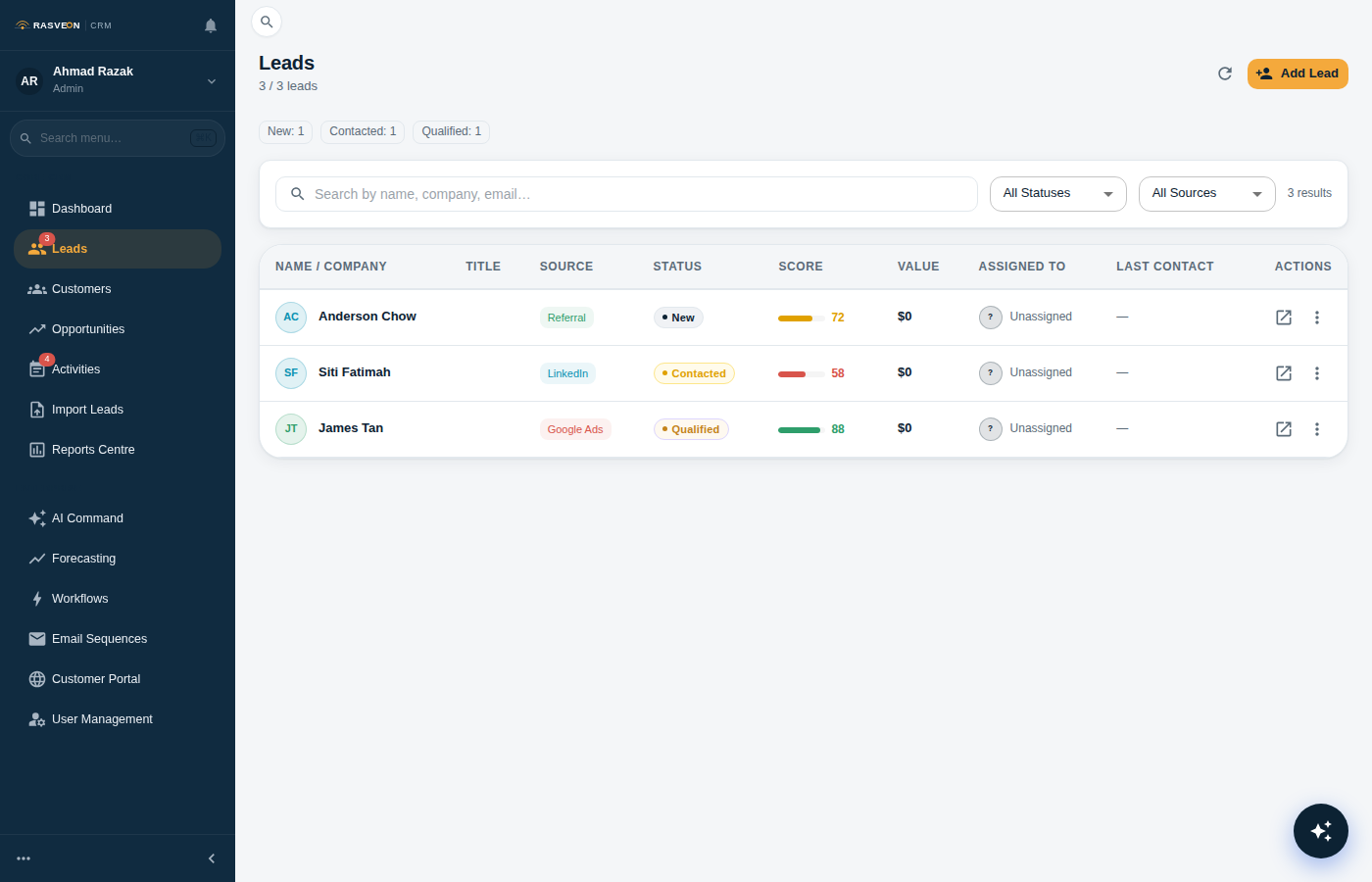
The Leads table
Click Leads in the sidebar to open the table. You'll see one row per lead with these columns:

| Column | What it means |
|---|---|
| Name | The person's name |
| Company | Business they represent |
| Status | New, Contacted, Qualified, Converted, Unqualified |
| Source | Where they came from |
| Assigned to | Who owns this lead |
| Last activity | Most recent call, email, or note |
| Created | When the lead was added |
Filtering & searching
- The search box searches name, email, phone, and company simultaneously
- The Status dropdown filters to one status
- The Assigned to dropdown filters to leads owned by a specific user (managers and above)
- The Source dropdown filters by referral source
- Multiple filters combine (AND)
Bulk actions
Select multiple rows using the checkboxes, then use the toolbar at the top:
- Assign to… — reassign the selection
- Change status — bulk update
- Delete — permanent, admin only, requires confirmation
Lead detail page
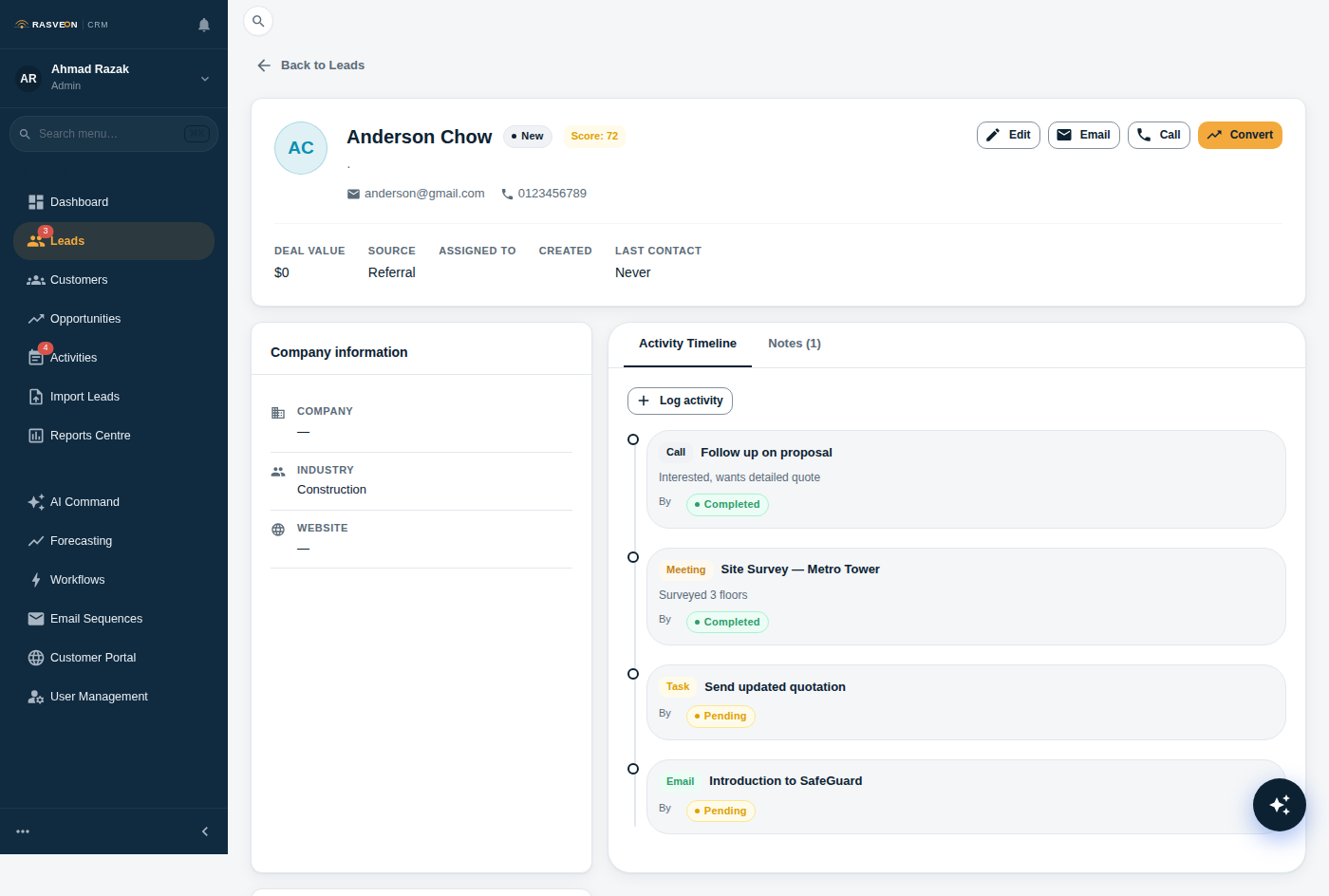
Click any lead to open the detail view. This is the most-used screen in Rasveon.

The layout:
- Left rail — the lead's fields (all inline-editable)
- Centre — Activities timeline (calls, emails, meetings, notes)
- Right rail — Quick actions (Email, Call, Convert), open tasks, related records
Inline editing
Click any value on the left rail to edit it. Press Enter or click outside to save; Escape to cancel. The changes save immediately — no separate "Save" button.
The Email button
Opens your default email client with the lead's email pre-filled and a suggested subject line. If you have the AI Assistant open, you can also ask it to "draft a follow-up email" — the AI will write something contextual you can copy or send.
The Call button
On the web app, this uses tel: — your OS handles it. On the mobile app, it uses the native dialler.
The Convert button
Turns the lead into a Customer + Contact + Opportunity in one action. See the First Lead walkthrough for details.
Lead statuses
| Status | Meaning |
|---|---|
| New | Just captured, nobody has contacted them yet |
| Contacted | Reached out but haven't confirmed interest |
| Qualified | Confirmed budget, need, and timeline — ready to sell to |
| Converted | Became a customer (set automatically when you click Convert) |
| Unqualified | Not a fit — wrong industry, no budget, timing off |
Statuses are freely settable — you can move a lead backward too (e.g. Qualified → Contacted if they went cold).
Sources
Sources come from a fixed list configured in Settings → Lead Sources:
- Referral
- Website
- Event / Trade show
- Cold outreach
- Existing customer
- Partner
- Other
Managers and admins can add new sources.
Duplicate detection
When you create a lead, Rasveon checks for a match against existing leads and customers by:
- Email (exact match)
- Phone (last 8 digits, ignores formatting)
- Company name (case-insensitive, ignores Sdn Bhd / Pte Ltd)
If there's a match, you'll see a warning with a link to open the existing record. You can still create the new one — the check is a warning, not a block.
Permissions
- viewer — read only
- user — can create and edit their own leads only
- senior — can edit anyone's leads
- manager and admin — full access, including bulk reassignment
See Roles & Permissions for details.