跳到主要内容

Tasks & Activities

Rasveon splits your work into two related but distinct things:

  • Tasks — things you need to do. They have a due date. They can be done or not-done.
  • Activities — things you have done. Calls made, emails sent, meetings held, notes left.

Both attach to leads, customers, opportunities, or contacts.

Tasks

Creating a task

You can create a task from three places:

  1. The Tasks page — click + New Task at the top-right
  2. Any lead / customer / opportunity page — click + Task on the right rail
  3. The AI assistant"Remind me to call Ahmad about the Menara quote on Friday"

Fields:

  • Title — required, keep it short and actionable
  • Description — optional detail
  • Due date & time — required
  • Assigned to — defaults to yourself
  • Related to — link to a lead, customer, or opportunity
  • Priority — Low, Normal, High
  • Reminder — optional; sends a push notification at the chosen time

The Tasks page

Shows tasks grouped as:

  • Overdue — red, top of the list
  • Today
  • Tomorrow
  • This week
  • Later
  • No due date

Filters: Assigned to me / Assigned to team / Everyone (managers+).

Task status

Tasks are either Open or Done. Click the checkbox to complete. You can't uncomplete accidentally — there's a two-second undo toast in case you tapped wrong.

The overdue badge

The sidebar shows a red badge next to Tasks when you have overdue items. The count updates live — as soon as a colleague marks one done or reassigns to you, the badge reflects it.

Activities

Activities are the record of what happened. Every call, email, meeting, and note.

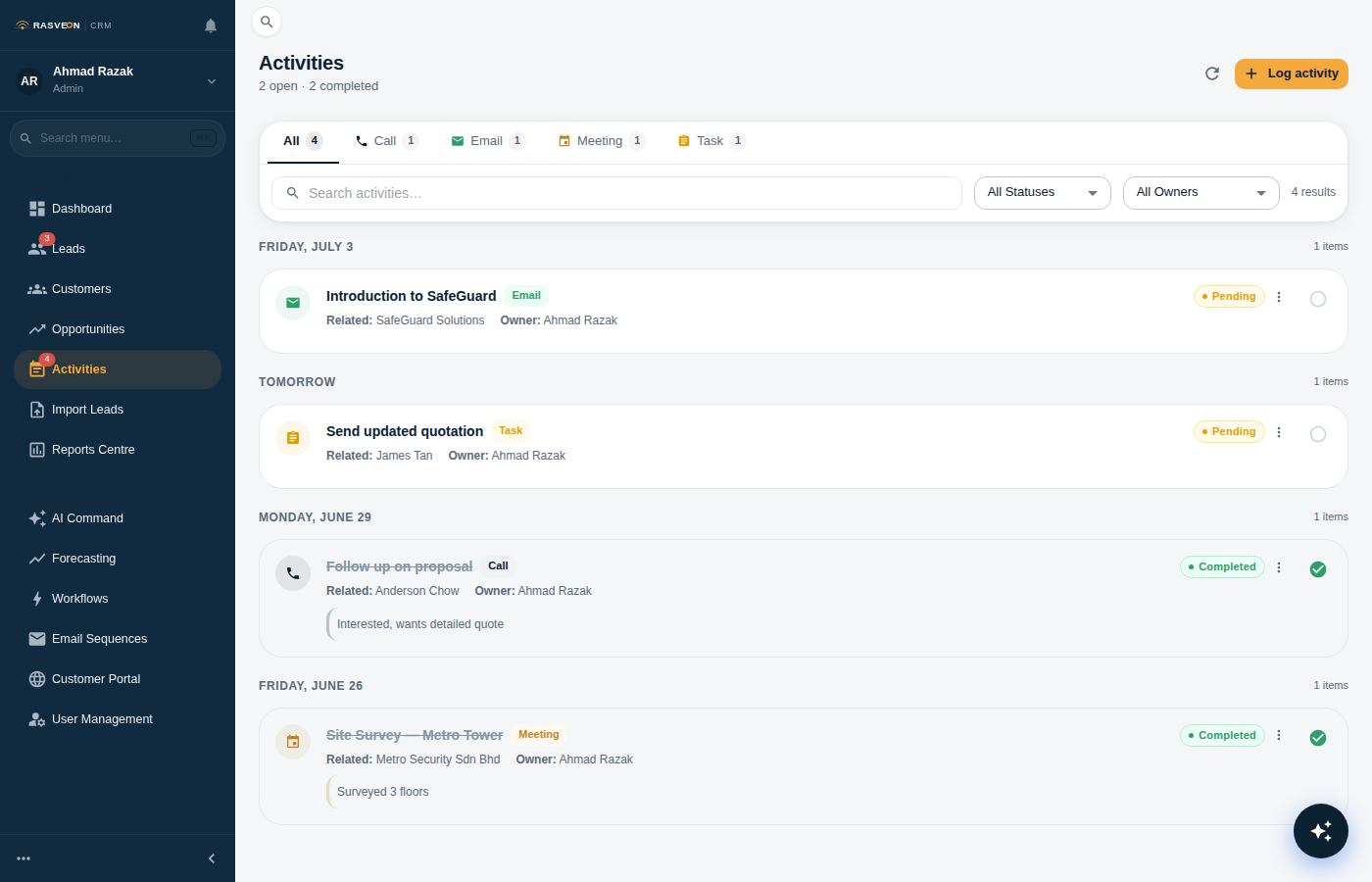
Activities timeline
The Activities view — every call, email, meeting, and task with filters and status.

Types

TypeFields
CallDirection (inbound/outbound), duration, outcome
EmailDirection, subject, body summary
MeetingLocation, attendees, duration, notes
NoteFree text
SMS / WhatsAppDirection, body summary

Logging an activity

Every lead / customer / opportunity has a + Log Activity button on the right rail. Pick a type, fill in what happened, save. The activity appears on the timeline immediately.

You can also ask the AI:

"Log a meeting — visited Menara HQ, met the ops manager, quoted for 14 doors not 12."

The AI will save the activity and, if it detects a next step in what you said, offer to create a follow-up task.

The Activities timeline

On any record, the centre of the page is a reverse-chronological timeline. Each entry shows who did what, when, and any details. Click to expand.

Filters at the top of the timeline: Type / User / Date range.

Best practices

  • Log calls right after you hang up. You'll forget the details in 20 minutes.
  • Attach photos to meetings. From the mobile app, take a photo of the whiteboard, the site, or the wiring diagram.
  • Never leave a call as "spoke". Write the actual outcome — what they said, what you promised, what's next.
  • Use tasks for anything time-sensitive. If it's not in Tasks, it will fall through the cracks.

Notifications

You get a push notification (mobile) and an in-app toast (web) when:

  • Someone assigns a task to you
  • A task you own becomes overdue
  • Someone @mentions you in a note
  • A deal you own moves stage
  • A lead you own gets a new activity from another user

Notifications settings are per-user under Settings → Notifications.