Tugas & Aktiviti
Rasveon membahagikan kerja anda kepada dua perkara yang berkaitan tetapi berbeza:
- Tugas — perkara yang perlu anda lakukan. Ia mempunyai tarikh akhir. Ia boleh dilakukan atau tidak dilakukan.
- Aktiviti — perkara yang telah anda lakukan. Panggilan dibuat, e-mel dihantar, mesyuarat diadakan, nota ditinggalkan.
Kedua-duanya dilampirkan kepada prospek, pelanggan, peluang atau kenalan.
Tugas
Mencipta tugas
Anda boleh mencipta tugas dari tiga tempat:
- Halaman Tugas — klik + Tugas Baharu di kanan atas
- Mana-mana halaman prospek/pelanggan/peluang — klik + Tugas pada rel kanan
- Pembantu AI — "Ingatkan saya untuk memanggil Ahmad tentang sebut harga Menara pada hari Jumaat"
Medan:
- Tajuk — diperlukan, pastikan pendek dan boleh diambil tindakan
- Penerangan — butiran pilihan
- Tarikh & masa akhir — diperlukan
- Diberikan kepada — lalai kepada diri sendiri
- Berkaitan dengan — pautan ke prospek, pelanggan atau peluang
- Keutamaan — Rendah, Normal, Tinggi
- Peringatan — pilihan; menghantar pemberitahuan tolak pada masa yang dipilih
Halaman Tugas
Menunjukkan tugas yang dikumpulkan sebagai:
- Tertunggak — merah, atas senarai
- Hari ini
- Esok
- Minggu ini
- Kemudian
- Tiada tarikh akhir
Penapis: Diberikan kepada saya / Diberikan kepada pasukan / Semua orang (pengurus+).
Status tugas
Tugas adalah Terbuka atau Selesai. Klik kotak semak untuk lengkapkan. Anda tidak boleh membatalkan penyelesaian secara tidak sengaja — ada toast batal dua saat sekiranya anda ketuk salah.
Lencana tertunggak
Bar sisi menunjukkan lencana merah di sebelah Tugas apabila anda mempunyai item tertunggak. Kiraan dikemas kini secara langsung — sebaik sahaja rakan sekerja menandakan yang selesai atau menugaskan semula kepada anda, lencana mencerminkannya.
Aktiviti
Aktiviti adalah rekod tentang apa yang berlaku. Setiap panggilan, e-mel, mesyuarat dan nota.
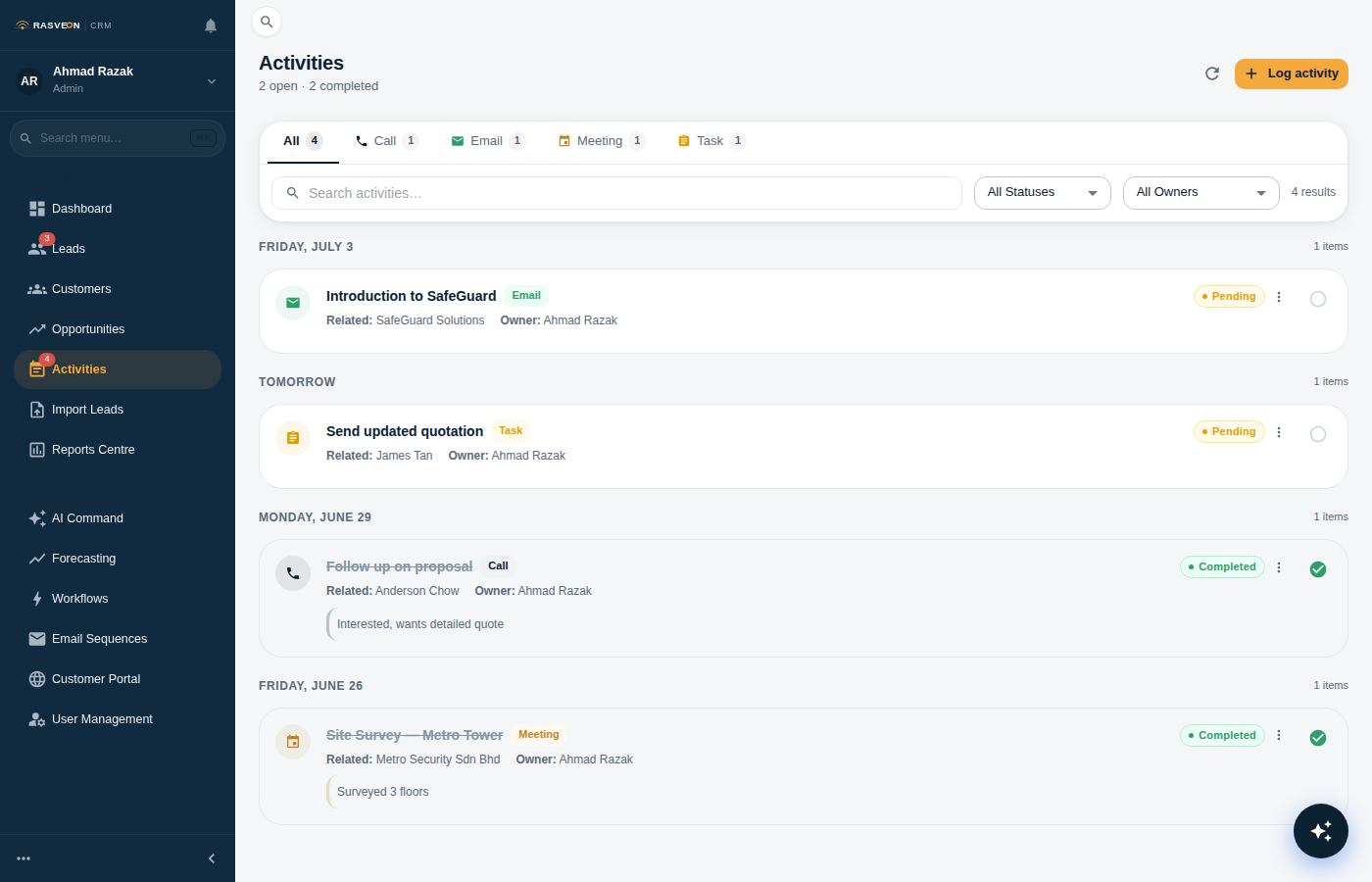
Jenis
| Jenis | Medan |
|---|---|
| Panggilan | Arah (masuk/keluar), tempoh, hasil |
| E-mel | Arah, subjek, ringkasan badan |
| Mesyuarat | Lokasi, peserta, tempoh, nota |
| Nota | Teks bebas |
| SMS / WhatsApp | Arah, ringkasan badan |
Log aktiviti
Setiap prospek / pelanggan / peluang mempunyai butang + Log Aktiviti pada rel kanan. Pilih jenis, isikan apa yang berlaku, simpan. Aktiviti muncul pada garis masa serta-merta.
Anda juga boleh bertanya kepada AI:
"Log mesyuarat — melawat HQ Menara, bertemu dengan pengurus operasi, sebut harga untuk 14 pintu bukan 12."
AI akan menyimpan aktiviti dan, jika ia mengesan langkah seterusnya dalam apa yang anda katakan, menawarkan untuk mencipta tugas susulan.
Garis masa Aktiviti
Pada mana-mana rekod, tengah halaman ialah garis masa kronologi terbalik. Setiap entri menunjukkan siapa yang melakukan apa, bila, dan sebarang butiran. Klik untuk mengembangkan.
Penapis di bahagian atas garis masa: Jenis / Pengguna / Julat tarikh.
Amalan terbaik
- Log panggilan sebaik sahaja anda letak telefon. Anda akan lupa butiran dalam 20 minit.
- Lampirkan foto pada mesyuarat. Dari aplikasi mudah alih, ambil foto papan putih, tapak, atau rajah pendawaian.
- Jangan tinggalkan panggilan sebagai "bercakap". Tulis hasil sebenar — apa yang mereka kata, apa yang anda janjikan, apa seterusnya.
- Gunakan tugas untuk apa sahaja yang peka masa. Jika tidak dalam Tugas, ia akan terlepas.
Pemberitahuan
Anda mendapat pemberitahuan tolak (mudah alih) dan toast dalam aplikasi (web) apabila:
- Seseorang menugaskan tugas kepada anda
- Tugas yang anda miliki menjadi tertunggak
- Seseorang @sebut anda dalam nota
- Deal yang anda miliki bergerak peringkat
- Prospek yang anda miliki mendapat aktiviti baharu daripada pengguna lain
Tetapan pemberitahuan adalah setiap pengguna di bawah Tetapan → Pemberitahuan.