跳到主要内容

Roles & Permissions

Rasveon has five roles that control what someone can do inside your workspace, plus one account owner flag that controls billing and workspace-level decisions.

The five roles

Roles are ranked. Higher rank includes everything the lower ranks can do, plus more.

RankRoleWhat they can do
0ViewerRead everything. Cannot create, edit, or delete anything.
1UserCreate records. Edit records they own. Cannot edit other people's records.
2SeniorEverything User does, plus edit anyone's records.
3ManagerEverything Senior does, plus reassign records, invite users, edit team settings, view team reports.
4AdminEverything Manager does, plus manage roles, delete records, and configure workspace-wide settings.

The Account Owner flag

Separate from the role hierarchy is the is_owner flag. There's always exactly one account owner at any given time in the workspace. The owner can:

  • Change the plan (upgrade / downgrade / cancel)
  • Manage payment methods
  • Schedule workspace deletion (see Workspace Settings)
  • Transfer ownership to another admin

The owner must be an admin. If ownership is transferred, both parties keep their admin role — only the flag moves.

Losing access to the owner account

If the owner leaves the company or loses email access, another admin can request an ownership transfer from Rasveon support. This requires identity verification and is not automatic.

What each role sees in the UI

Viewer

  • All read pages (Leads, Customers, Opportunities, Reports)
  • No "Create" or "Edit" buttons anywhere
  • The AI can only run read skills — search, lookups, reports

User

  • Same read access as Viewer
  • Can create new records
  • On records they don't own: can view but the fields are read-only
  • The AI will refuse to update someone else's record with a clear message

Senior

  • Full edit rights on any record
  • Cannot reassign records between users (that's a Manager action)
  • Cannot invite new users

Manager

  • Full edit and reassign rights
  • Can invite new users up to their own rank (a Manager can invite Users and Seniors, not other Managers)
  • Can view team-level reports
  • Can configure Sources, Pipeline stages, and Lead Statuses

Admin

  • Everything the Manager can do
  • Manage user roles (promote, demote)
  • Delete any record (with confirmation)
  • Configure workspace-wide settings
  • Access Settings → Advanced

Changing someone's role

Only admins can change roles. Go to Settings → Users, find the user, click the role dropdown.

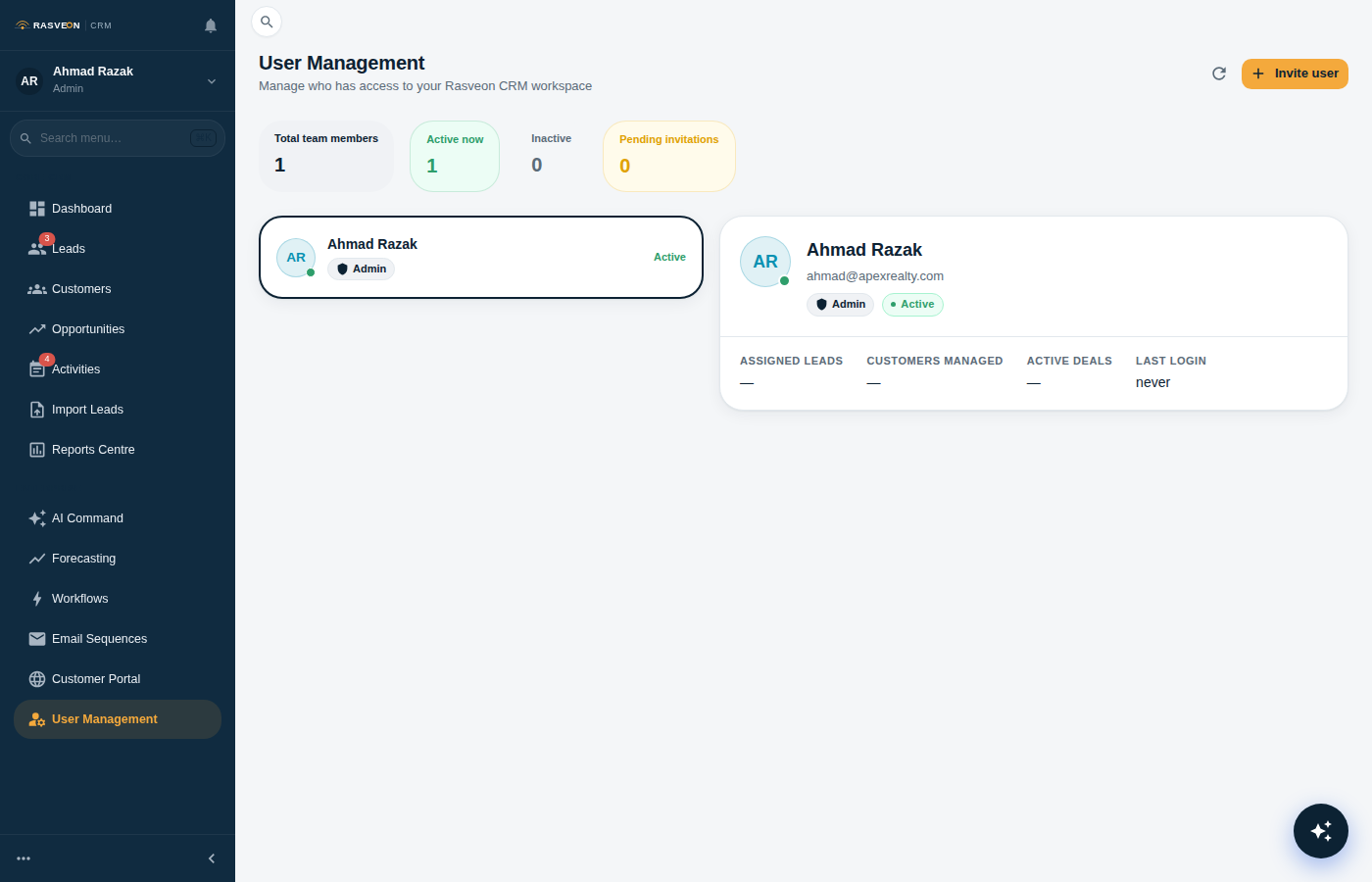
User management screen
Settings → Users — invite, promote, deactivate, or force sign-out.

A demotion doesn't remove history — activities they logged, records they created, notes they wrote all stay attributed to them.

Trial and read-only mode

If your subscription trial expires without a plan, the workspace goes into read-only mode — everyone becomes effectively a Viewer until the account owner subscribes.

This is not a role change — the users' actual roles are preserved. Once you subscribe, everything works again.

Permissions and the AI

The AI respects all role rules. If a User asks the AI to edit a lead they don't own, the AI will respond with something like:

"I couldn't update that lead — it's assigned to Sarah. Ask Sarah, or a senior/manager, to help."

The AI will never impersonate a higher role or bypass a permission check.

Best practice for team structures

For a typical field service business of 10-20 people, we suggest:

  • 1 Admin — the business owner or operations manager, also the account owner
  • 1 Manager — the sales lead or head of installations
  • 2-4 Seniors — experienced technicians and sales reps
  • All others as User — new hires, junior staff
  • Viewer — accountants, external partners who need visibility but shouldn't edit

Read next: Workspace Settings → for what admins can configure.